
PalletLogics features
A module by module breakdown. For the shorter version, see the PalletLogics overview.
3D cell visualisation
The complete cell is rendered in a real-time 3D scene built for engineering work rather than presentation.
- Orbit, pan and zoom with standard CAD controls, and snap to top, front and side views for dimensional review
- A calibrated ground plane and crosshair give spatial reference at any zoom level
- Infeeds, container poses and geometry objects can each carry a label in the viewport, which keeps multi-component cells navigable
- Transparent geometry rendering keeps overlapping structures legible, so gripper clearances inside containers stay visible
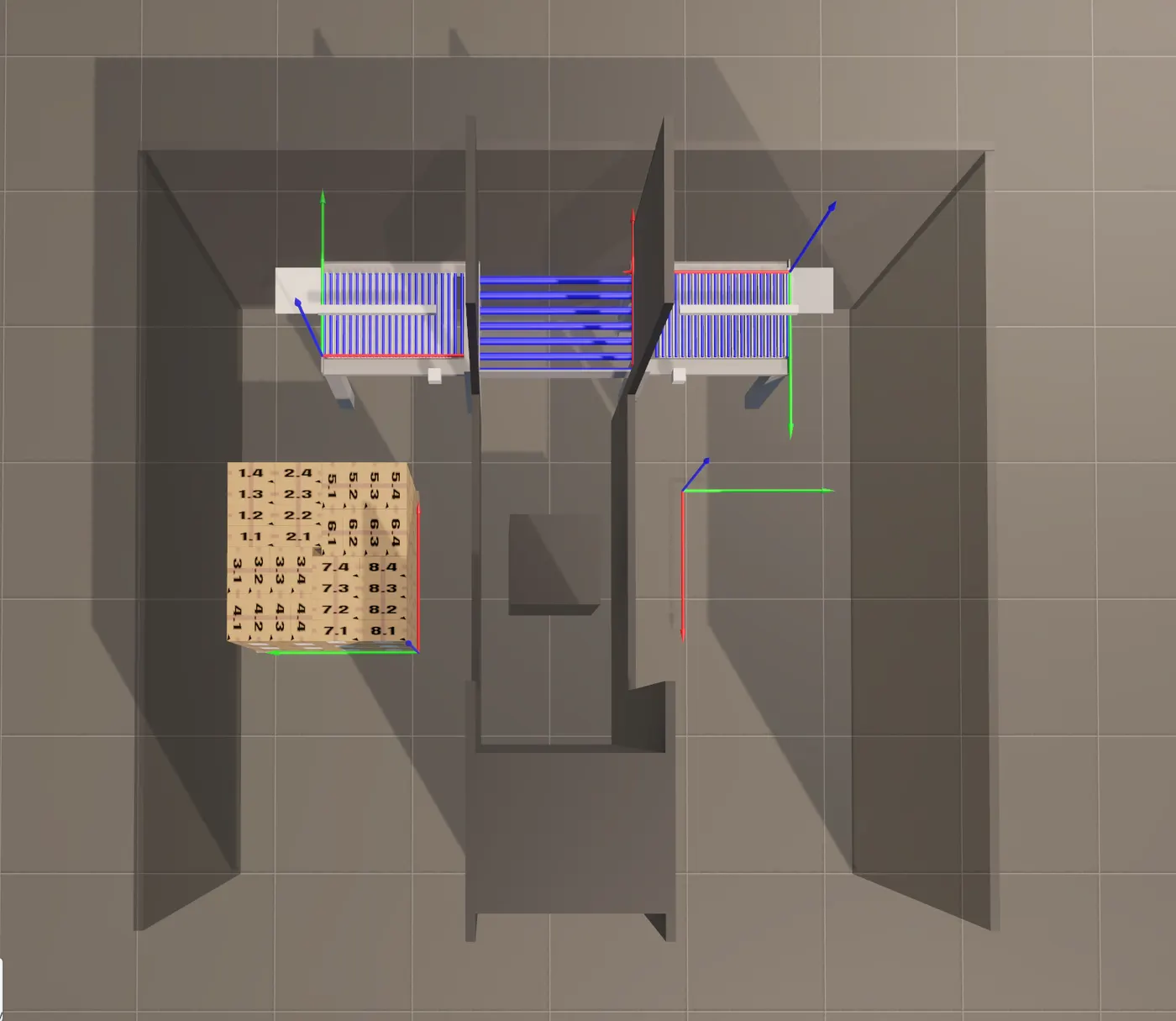
Cell geometry builder
Safety fencing, conveyor frames, upright posts, tables and shrouds can be modelled directly, using parametric primitives or imported models.
- Shapes: cuboid, sphere, cylinder, plus OBJ mesh for custom geometry
- Full 6-DOF position and orientation per object (X, Y, Z, Rx, Ry, Rz)
- Individual colour and transparency per object
- Imported OBJ models keep their original colours, or take an override
Gripper configuration
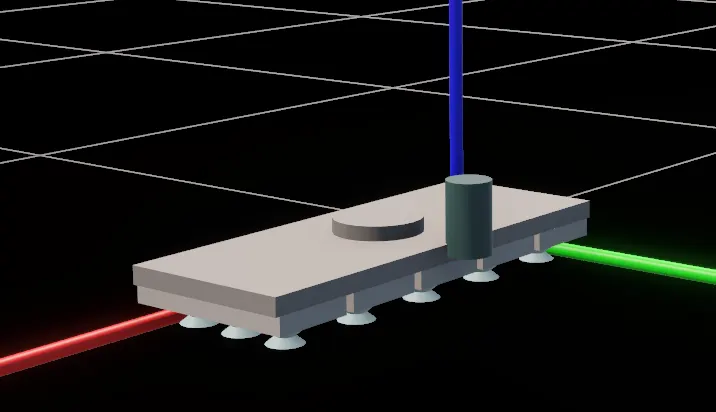
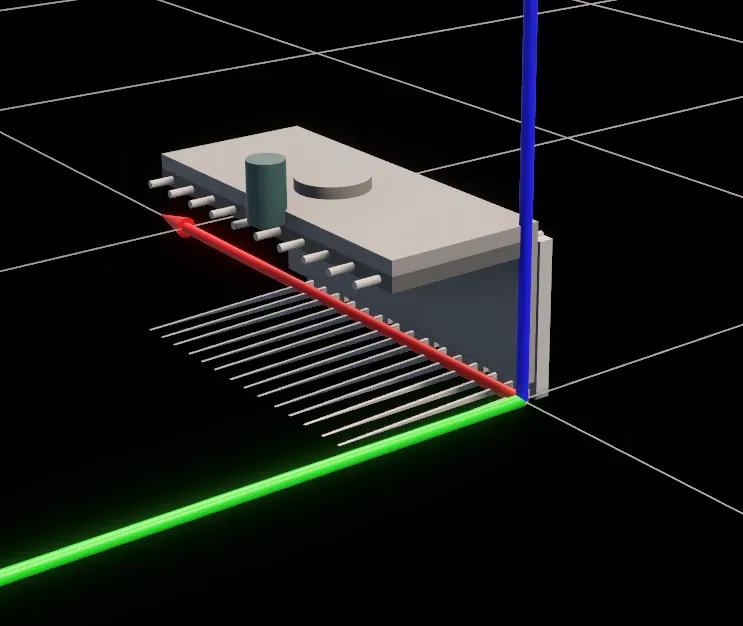
The parametric gripper modeller builds the tooling geometry from dimensions you already know. No 3D modelling experience needed.
| Gripper type | Key parameters |
|---|---|
| Vacuum pad | Frame size, pad height, zone count |
| Vacuum cup | Cup diameter, cup height, X and Y cup pitch, zone count. The cup array is generated automatically. |
| Tine (fork) | Opening height, tine length, tine width, tine pitch, offset to first gap, zone count |
| Clamp | Clamp height, clamp width, zone count |
| Custom OBJ | Import any 3D model for tooling outside the standard types |
Multi-zone grippers are fully supported, with the zone count driving both the rendered geometry and the pick and place zone checkboxes in the sequence table. The cable and pneumatic entry point is configurable and rendered in the scene, so clearance conflicts show up at design time.
Gripper visibility toggles independently at the pick position, the place position and each of the three approach positions. Approach motion can be animated in the viewport to preview the inbound path.
Infeed configuration
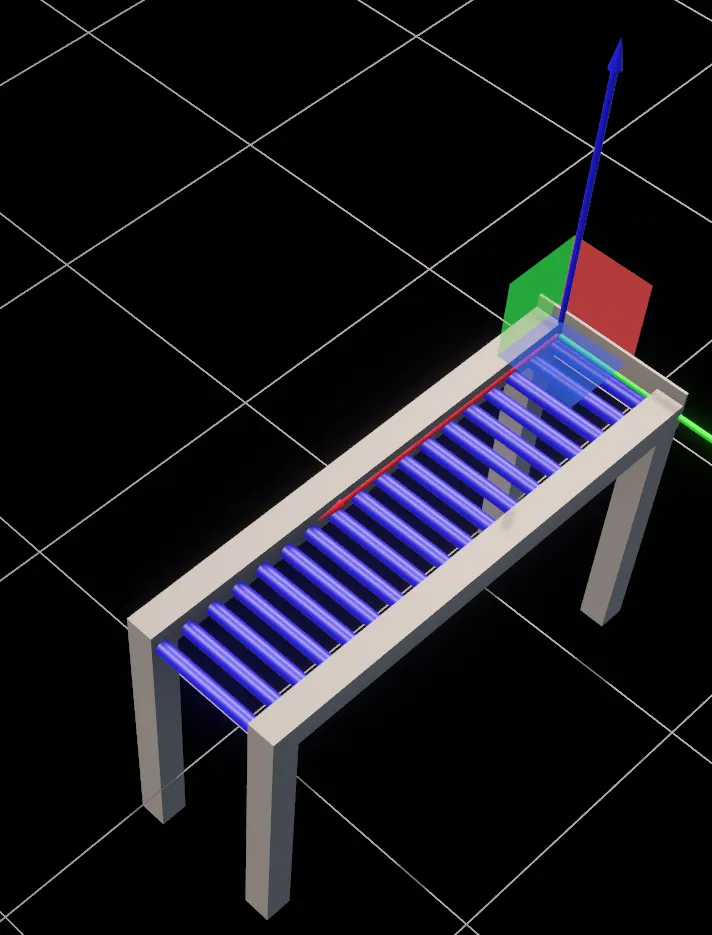
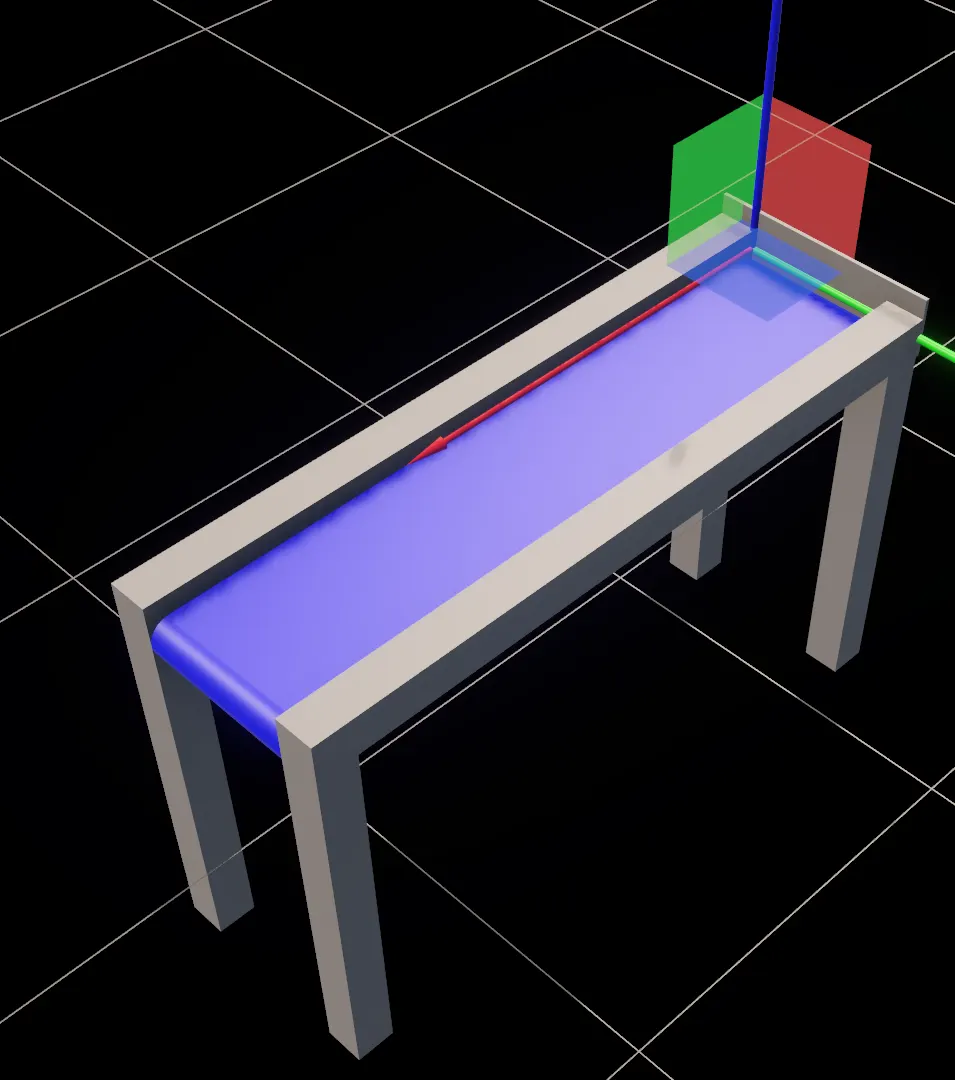
Infeeds are generated as full parametric 3D models from engineering dimensions. Multiple infeeds can sit in one project and be referenced independently from any sequence in any layer.
| Infeed type | Description |
|---|---|
| Roller conveyor | Frame rails, end stops and individually rendered rollers. Roller count is calculated from length and pitch. |
| Roller conveyor with lifter | Standard roller conveyor plus lifting arms and a lifter plate, with a configurable number of lifters. |
| Belt conveyor | Conveyor frame with belt surface and end pulleys. |
| Accumulation station | Flat table surface for multi-row pre-accumulation pick patterns. |
Each infeed carries a full 6-DOF pose, item justification (left, centre or right), a configurable number of accumulated rows for multi-row pick strategies, and a default mirror pick setting.
Containers and pallets
Named container positions represent pallets, slip sheets, cartons or any other destination for placed product.
- Container types: pallet and box. The box type covers carton-in-carton and case packing.
- Full 6-DOF pose per container position
- Container names carry through into generated code and PDF reports, which keeps multi-pallet projects organised
- With container grouping enabled, layers are organised by container in both code generation and the report
Layer design
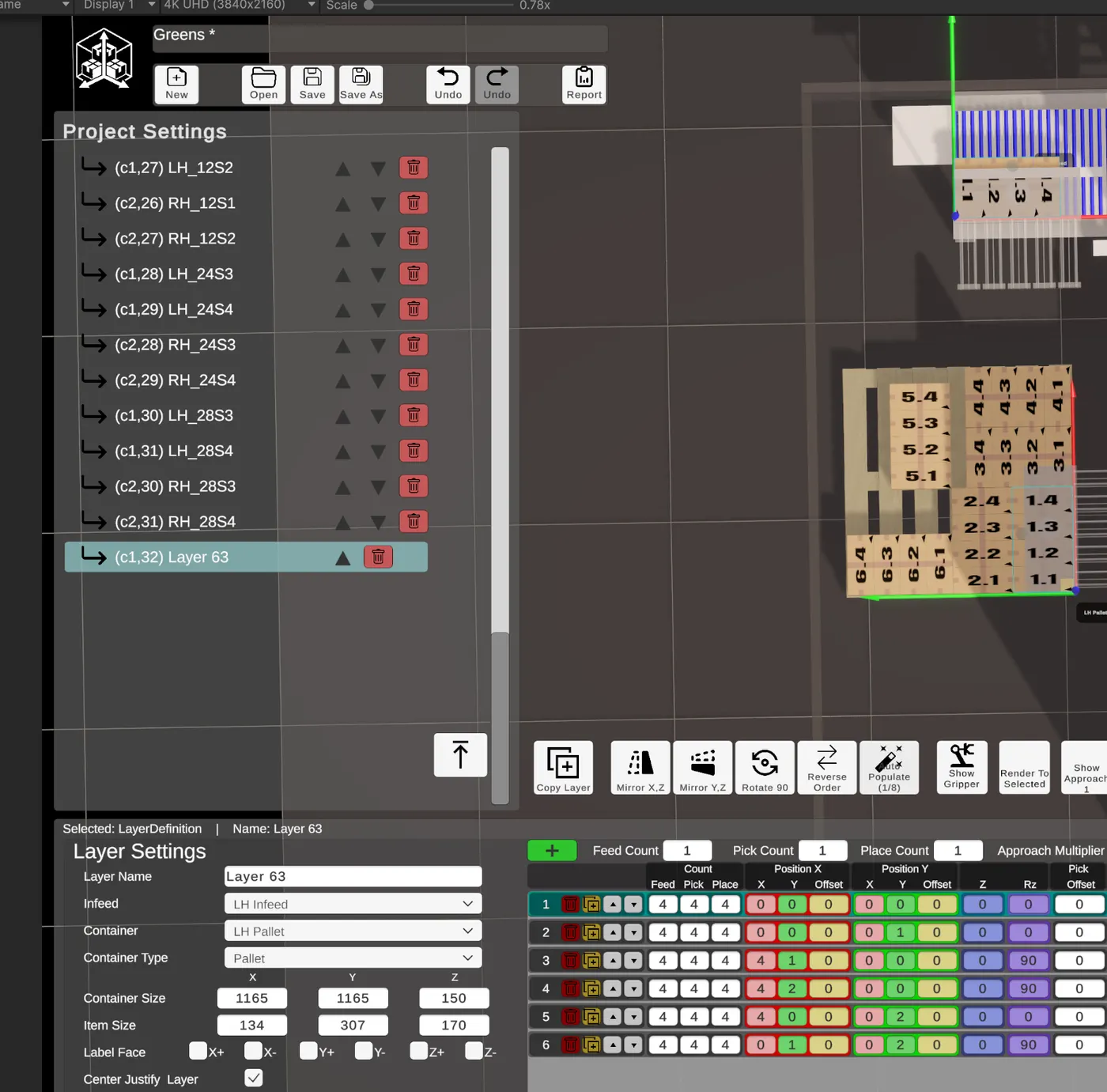
A layer defines the complete placement pattern for one tier. It references a container, an infeed and an item definition, and holds the list of pick and place sequences that build the tier.
| Setting | Purpose |
|---|---|
| Layer name | Identifier used in code generation and documentation |
| Container assignment | References a configured container pose by index |
| Container type and size | Pallet or box, with X, Y and Z dimensions in mm |
| Infeed assignment | References a configured infeed by index |
| Item dimensions | X, Y and Z in mm. All placement calculations derive from these. |
| Centre justify | Offsets the layer footprint to sit centred on the container |
| Approach multiplier | Scales the output of the approach vector preset buttons for this layer |
| Item position rule | Box dimension offsets, manual mm offsets, or both |
| Layer footprint | OverallX and OverallY, calculated from the resolved sequence extents |
3D pallet layers
Multiple layers can build simultaneously across different height levels on the same pallet, rather than working through one level at a time. This matters for cycles where the robot or gantry interleaves placements across several Z levels in a single pass.
Sequence table
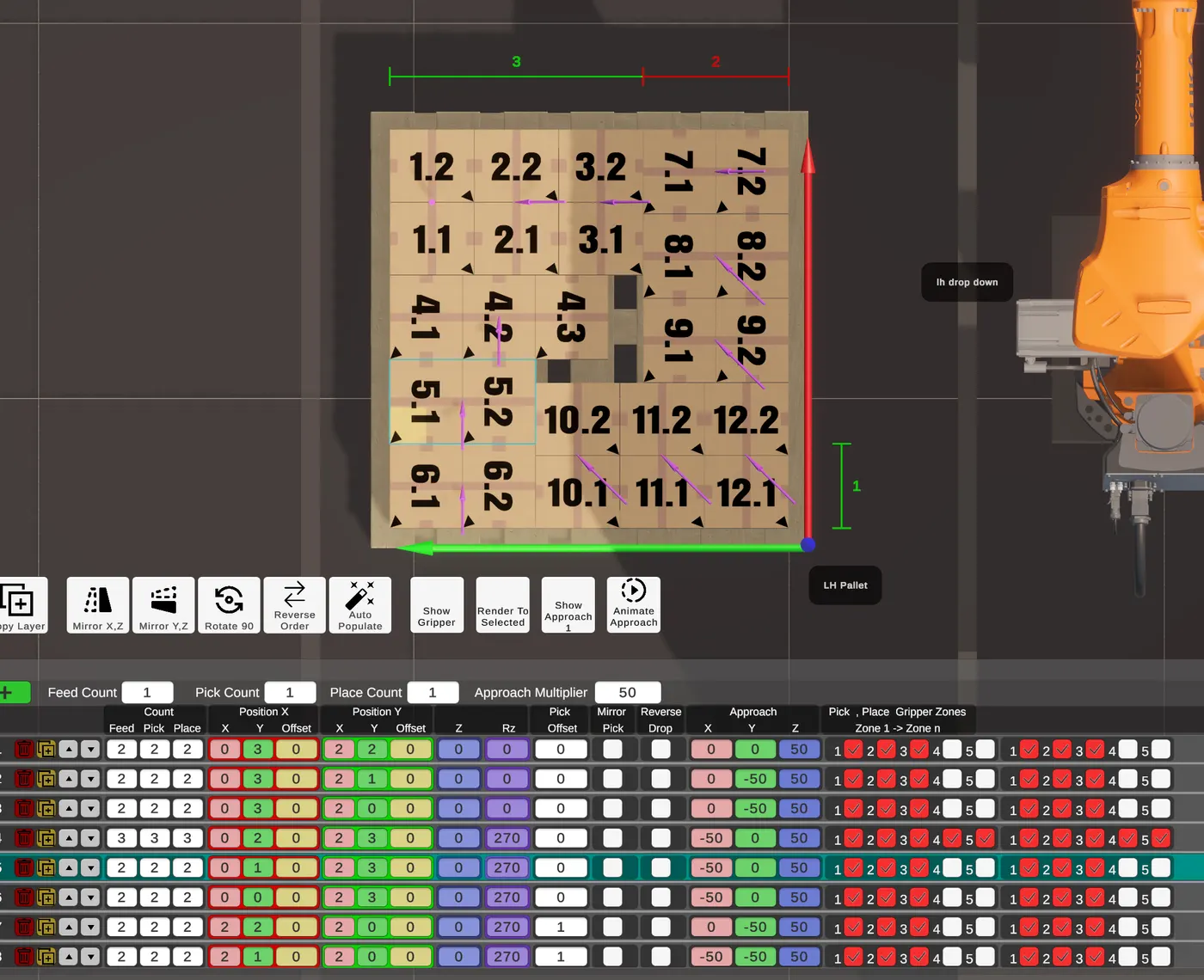
Each row is one pick and place movement.
| Field | Description |
|---|---|
| Num to pick | Items picked from the infeed in this move |
| Num to deliver | Items carried to the pallet position |
| Num to place | Items set down at the destination |
| Place X / Y | Root position as multiples of item X and Y, plus an optional mm offset |
| Place Z | Layer height as multiples of item height |
| Place angle | Box rotation in degrees |
| Approach 1, 2, 3 | XYZ offset vectors per approach position, enabled at project level |
| Pick offset index | Infeed pick position offset index |
| Pick pitch deg | Pick pitch angle |
| Mirror pickup | Flips the pick orientation for this sequence |
| Reverse place order | Reverses the order boxes are placed within the group |
| Pick and place zones | Bitmask of active gripper zones at each end of the move |
Rows can be added, deleted, copied and reordered, with keyboard navigation. Feed count is validated on add, so invalid infeed references cannot be created.
Automatic layer population
The auto-populate engine evaluates six pattern families and returns up to eight ranked candidates.
| Pattern | Description |
|---|---|
| Uni-block (U) | A single box orientation filling the pallet |
| Bi-block (B) | Two zones split by a vertical or horizontal cut, each independently oriented |
| Tri-block (T) | Three parallel zones with independent orientations |
| Spiral / pinwheel (S) | A rotational pattern with four interlocking zones at alternating orientations |
| Quad-block (Q) | Four zones in a 2x2 grid, each independently oriented |
| Penta-block (P) | Five zones combining a tri-block structure with split inner zones |
A recursive tree search runs alongside the named patterns to find higher-count arrangements they do not cover. Candidates are ranked by box count, pattern quality, footprint squareness and packing tightness. Group size per sequence is constrained by the gripper width, so every generated pattern is achievable.
Layer preview
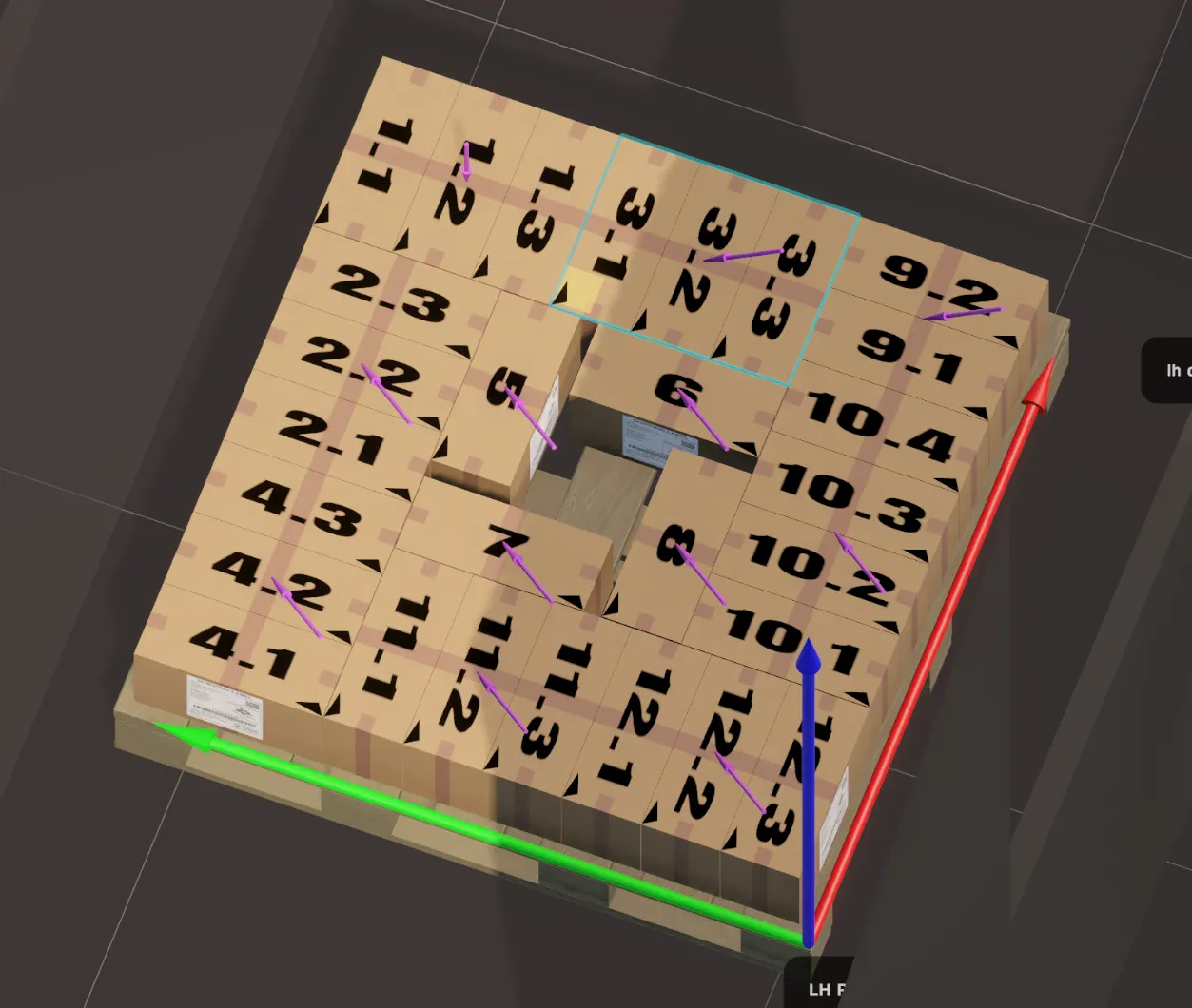
Changes to the sequence table appear in the 3D preview immediately. There is no separate render step.
- All place groups for all sequences render at once, with the selected sequence showing its infeed pick position separately
- Gripper position at pick, place and each of the three approach positions toggles independently
- Approach vectors render as 3D directional arrows from the offset point to the target
- The carry group shows boxes in transit between pick and place
- Preview mode can show all place groups, or only those up to the selected sequence, to check build order
- Dimensional measurement markers overlay the scene
Viewport gizmo and drag handles
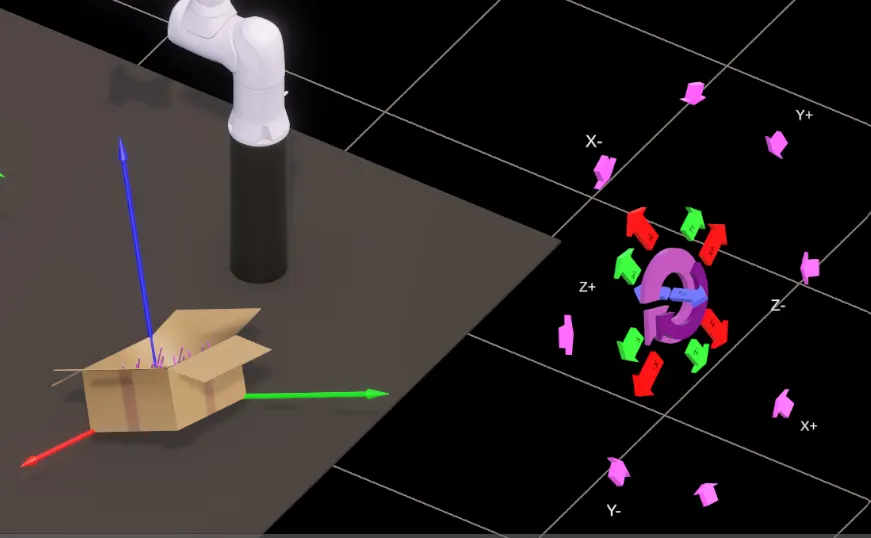
A 3D gizmo anchored to the selected sequence adjusts placement and approach settings directly in the viewport.
- Movement buttons shift the selected group by exact item-dimension increments in X, Y and Z
- Approach buttons cover eight directions and write to Approach 1 using the layer-level multiplier
- Rotation controls perform centre-preserving 90 and 180 degree rotations using item-multiple offset recalculation, so grid alignment is maintained
- The gizmo aligns to the container orientation, so button directions always match the pallet face
- It also rotates with the camera, so directions stay visually consistent at any viewing angle
Clicking a box group in the preview selects it and shows a square drag handle. Dragging repositions the group, with PlaceX and PlaceY updating live. No confirm step.
Layer transforms
| Tool | Effect |
|---|---|
| Mirror XZ | Flips all sequences about the layer X axis, preserving placement angles |
| Mirror YZ | Flips all sequences about the layer Y axis, preserving placement angles |
| Rotate 90 CW | Rotates the layer footprint 90 degrees clockwise and updates placement angles |
| Reverse place order | Inverts the sequence build order |
All transforms work from the resolved item-space placement geometry, so results land on exact item-grid coordinates.
Recipes
A recipe assembles multiple layers into a complete pallet build sequence, specifying container type and dimensions for the full stack and referencing layers by name. The recipe preview renders the finished multi-layer pallet in 3D.
Post processor
| Category | What is configurable |
|---|---|
| Module structure | Module header and footer, recipe module name, path module name |
| File extensions | Source and data file extensions |
| Type declarations | Keywords for integer, float, string, bool and pose types |
| Array syntax | Bracket characters, array base index (0 or 1) |
| Control structures | If and while header and footer templates |
| Motion instructions | MoveL and MoveJ structures |
| Pose structure | Pose tuple format, matched to the target controller |
| Routine structure | Function and routine wrapper templates |
| Operators | Assignment, equality, inequality, comparison and logical |
| End of line | Statement terminator |
| Comment character | Single line comment prefix |
| Variable names | Every output variable name, including layer name, container offsets, item dimensions, place and approach position arrays, gripper zones, mirror pick, reverse place and pick offset |
| Routine names | Pick, place, tool, frame and set-layer routine names |
A setLayer(Index) dispatcher routine is generated automatically, giving the controller a single clean entry point per pallet cycle. With container grouping enabled, separate dispatchers are generated per pallet position. Centre offset calculations are emitted as runtime expressions, so offsets adjust automatically if container dimensions change on the machine.
Multiple post processors can be active in one project, so output for different controllers or documentation formats is produced in a single step. The built-in code viewer includes syntax highlighting.
PDF layer report
| Section | Content |
|---|---|
| Cover page | Project name, generation date and time, layer count, custom splash image and VMotion branding |
| Table of contents | Every layer with container, layer name, item size, container size and boxes per layer, grouped by container where enabled |
| Section dividers | Branded divider pages between container groups |
| Layer pages | Top-down 3D view alongside the configuration summary and full sequence data, continuing across pages as needed |
The configuration summary covers gripper name and type, container type and dimensions, item size, layer footprint, pallet utilisation percentage, X and Y overhang or underhang, centre justify setting, approach multiplier and sequence count. Utilisation is the percentage of container area covered by product. Overhang and underhang are reported in millimetres.
Project management
- Hierarchical project tree across cell geometry, gripper, infeeds, containers, layers, recipes and post processors
- Full undo and redo across all property changes
- Unsaved state tracking, with a prompt before closing or loading another project
- Confirmation on destructive operations such as deleting a layer or sequence
- Single file
.pplxformat, structured XML, readable and version-control friendly - Earlier XML project formats can still be imported
Licensing
| Licence | Description |
|---|---|
| Full | Unlimited access to all features and project components |
| Evaluation | Functional access with limits on project size, for pre-purchase assessment and proof of concept |
Licences are machine-bound and imported from the General Settings panel. Current status (valid, evaluation, expired or invalid) is shown in the application at all times. Expiry dates are supported, which allows time-limited, rental or project-based arrangements. An in-app licence request dialog is included.